
I have a love/hate relationship with Ipads. I have one because my school gave me one but the reality is I’m happier with a laptop, as I can type and work ten times faster on that than on an Ipad.
My school is part of an academy trust where each teacher and child receives a device. During the pandemic, many students didn’t have access to a suitable device for lessons that wasn’t a smartphone. The trust that ran the school worked at pace to ensure students had access to laptops. Subsequently, they moved on to the idea of “what if every student in our academies had a device to complete homework on?” With a large proportion of disadvantaged students across schools in the trust, there was a moral dimension to the decision.
This isn’t going to be a post about the pros and cons of Ipad use in schools, nor the issue of giving a device to 11-16 year olds in a country where we use screens for 35% of our waking hours. Believe that’s a whole blog post written by people far better researched than me.
My sole aim in writing this one is to explain:
If you have them, if you are getting them, or if they come in the future: How they can be used as one of the many tools in your classroom toolkit? Most of the following also applies to schools where laptop trolleys can be booked or IT rooms reserved.
That is all.
So here are some ways I have used them:
Grammar Practice
My most common use of them in Spanish is grammar practice. Websites such as The Language Gym and Languages Online are extremely useful in this regard. Students can be introduced a grammar point and then there are opportunities to practice them. The former is superb for consolidation of vocabulary through workouts, verb paradigms through the verb trainer and almost all students enjoy boxing and rock climbing. On that last one, turn the volume on the Ipads down or people in the corridors start to wonder what is going on! Languages Online works well when you want to check a grammar point has been understood. It also makes great extension work. QR codes – which you can generate for free – are a great way to get link to one of these sites on to a PowerPoint that pupils can easily scan and start completing as soon as they are finished with other tasks.
Checks for understanding
One of the best apps for creating customised quizzes to check for understanding is Formative. Students need to be signed up to this one and it does come with a cost that might be worth sharing across departments or trustwide.
Formative boasts a wide range of question types (see below). There are short answer, match-ups, putting in order, categorising and many more in the picture below. It even offers the option to record voice answers. You can deliver feedback very quickly to students and see who is understanding and who is not with a fairly simple graphical interface. You can set up correct answers very easily so activities become largely self-marking (e.g. the inclusion of certain words in an answer will make it correct). It also has recently started to integrate some AI capability. If you wanted to you could use it for reading assessments as you can add questions to worksheets that are then self-marking. It could also be used for listening assessments where students simply enter in multiple choice or short answers. A variety of answers can be added to answer keys. Adding new answers – when students come up with the one thing you didn’t think of – is simple too. It is aimed at the US market so quite often refers to grade rather than key stage.
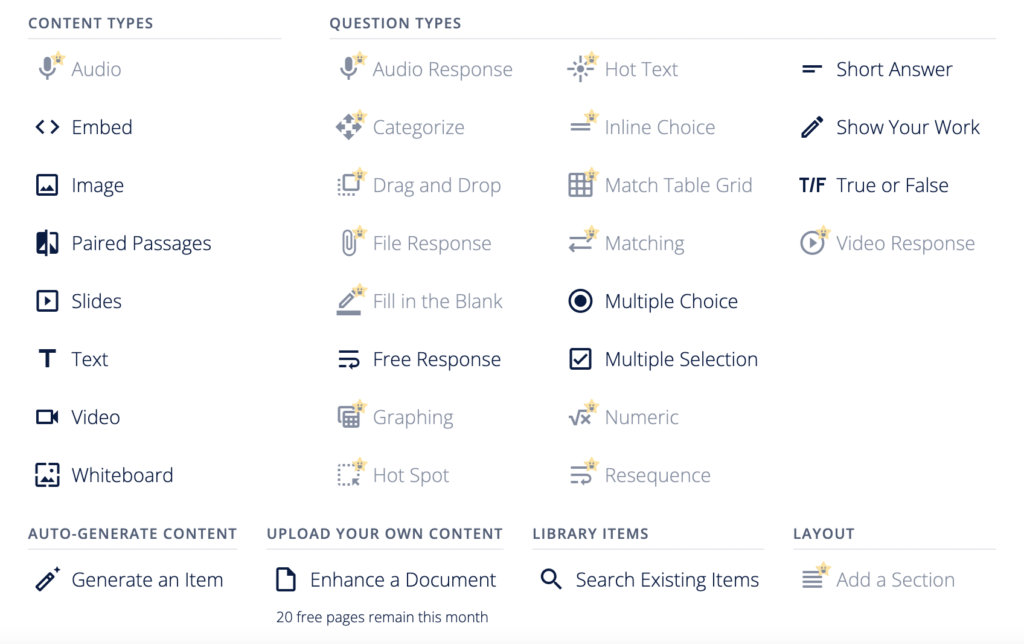
One helpful feature that I can’t demonstrate here is the ability to see what every member of the class has written for an answer on one screen. The marks for these can then easily be awarded.
What a good answer looks like
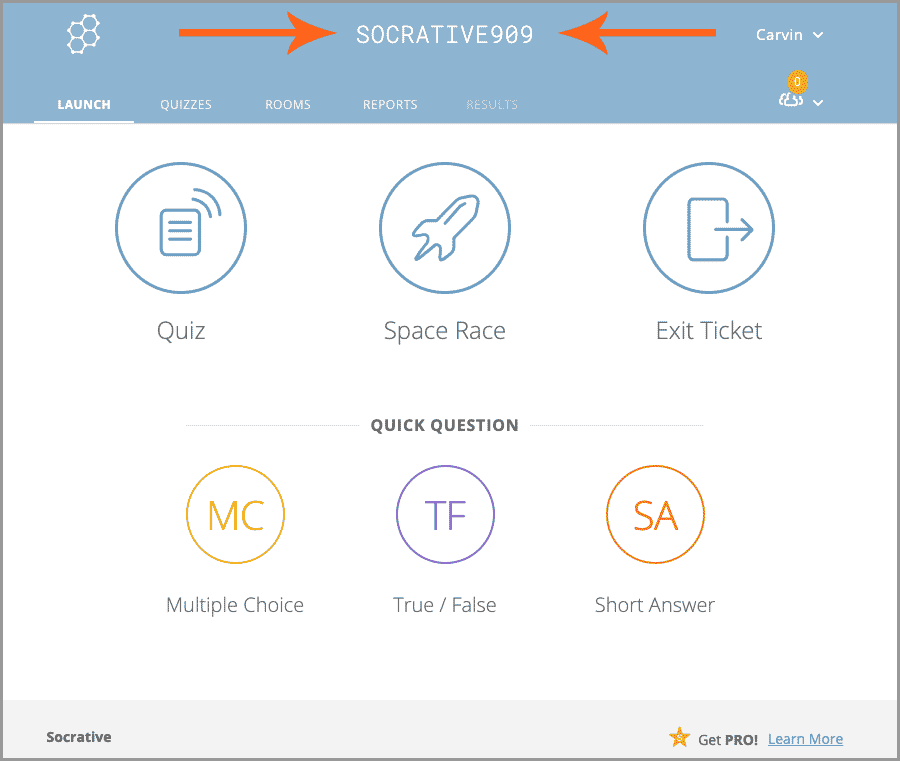
Socrative is a similar app for quizzes. The basic version does not offer the range of question types as Formative does but it offers a number of free quizzes with a free account. Students log on to the website, type in a room name and then their name. You can see the options it offers in the picture below.
I have found that there is another use for it in the structured and free production phases of a lesson. At this point, you set up a teacher paced quiz and get students to answer a question. Socrative allows the hiding of names so you can put 25 answers on the screen. You are then able to give live feedback anonymously on which ones are best, what good features there are, and ultimately show students what a good answer looks like. It is a great way to boost the confidence of your quieter students. They can then improve their answer on the next question. You can also see the names on your screen and praise those students. While students complete the next one, you can go and support the ones that evidently need some help. An example is below:
| ********** | En mi tiempo libre me gusta juegar al futbol |
| ********** | En mi tiempo libre me gusta jugar al futbol y me gusta jugar al tenis |
| ********** | Me gusta juego al footbol |
| ********** | Me encanta jugar al futbol porque es mi deporte Favorito |
| ********** | En mi tempo libre me gusta juego al futbol |
Homework platforms
Probably, the biggest bonus of the Ipads is student ability to complete work at home where the option may not have previously existed and one major excuse has now been removed. Most language departments seem to have some preference of online homework platform.
The table below is for those of you who post on facebook groups investigating new platforms with a sudden bit of budget you discovered hadn’t been spent, or for those considering a change. My research of Secondary MFL related Facebook groups suggests preferences for the following:
| Sentence Builders | Language Gym | Language Nut | Seneca |
| Language Gems | Textivate | Quizlet | Blooket |
| LingoTeach | Thisisschool (formerly thisislanguage) | Samlearning | Linguascope |
If yours is not there, please feel free to contact me and I can add it.
Adding a bit of fun to lessons / what to do with unexpected extra time because they finished quicker than planned
In language classrooms we often use games to improve language, test retention of vocabulary, or we can gamify our checks for understanding. I have already mentioned Language Gym.
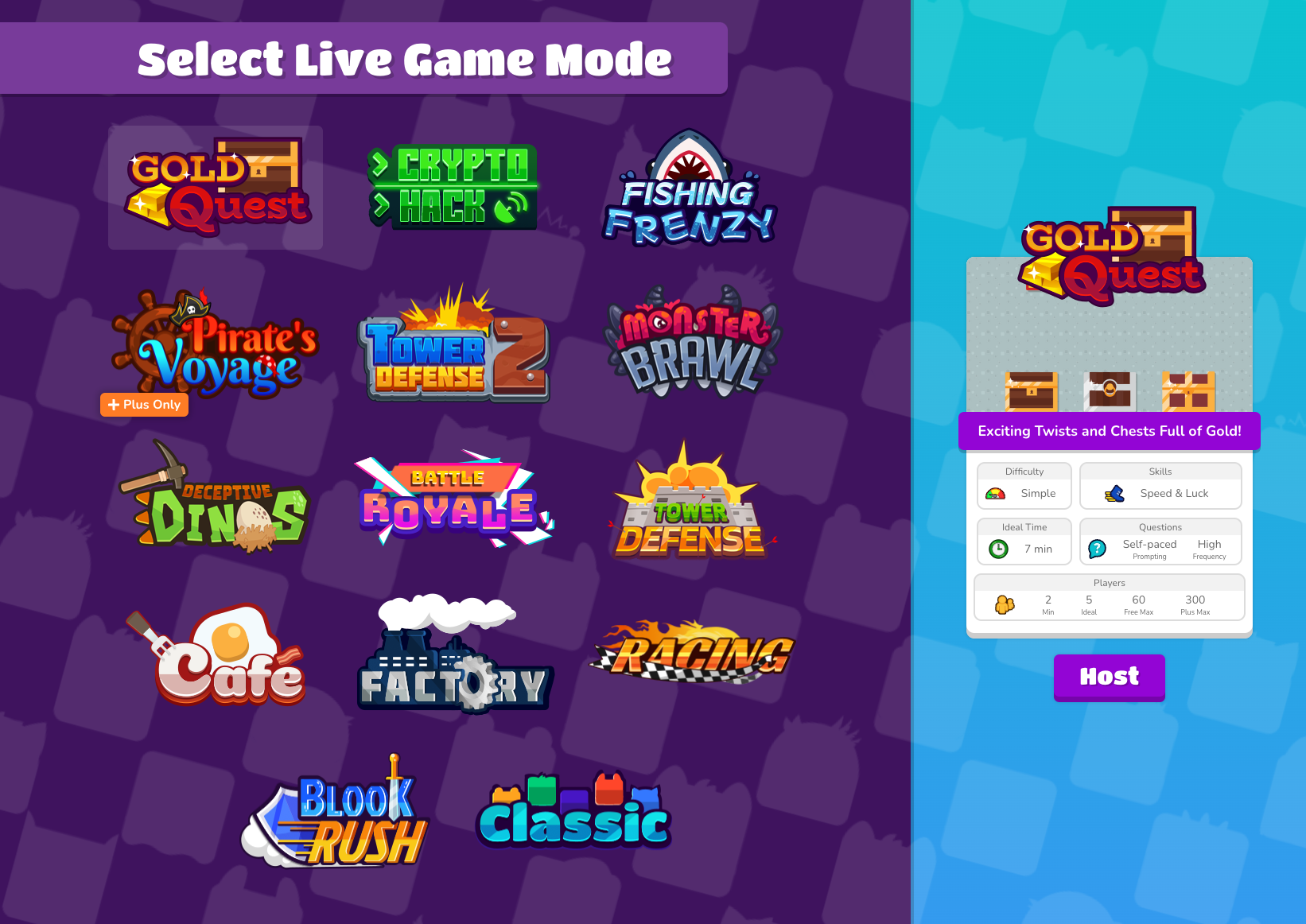
Another favourite which lends itself to the Ipads, or the last 5-10minutes of a lesson is Blooket. Blooket has a number of games built in. Over the past few years, I have found that Gold Quest and Racing are the best for quick games to test vocabulary. Gold Quest turns your most placid Year 7s into money stealing demons who are suddenly keen to answer as many questions on Spanish school vocabulary as possible. Racing involves a race across the screen but with MarioKart-esque power ups. Gold Quest also gets a Christmas edition when the time comes. You can set length of time, amount of questions etc and there are plenty of pre-written quizzes already in there. Students can also make their own logins and it’s very likely someone out there has probably created one on the exam board vocabulary lists.
If you have time at the end of term then a Battle Royale randomly pits members of the class against each other until one is left.
I’m told that Kahoot (very similar platform) has started to catch up.
Paper free resources
If you are a photocopying heavy department and lots of MFL departments are then this is one area where the Ipads come into their own. All vocabulary sheets, knowledge organisers and other sources of information such as practice questions can all be uploaded in an easily accessible location. Admittedly, this is still achievable in a non-ipad school and resources can be placed on Teams or Google drive to be accessed easily from home. It also means no-one can claim they don’t have the sheet and you are not left frantically searching for that last remaining photocopy.
My feeling is that students still benefit from writing on pen and paper. Various pieces of research seem to back this up and suggest that students make less errors.
GCSE Revision
They also come into their own for GCSE revision. Resources can be put in one place. Tasks can be set on websites and students can work through at their own pace during study leave. For those students who say “I don’t know what to revise” or “I don’t know how to revise”, you can facilitate both by putting links in an easy to find place. Avoid QR codes – unless you have put them on a sheet – as you will need an Ipad or phone to scan the code! With some of the websites above, you can also set listening practice, which is probably one of the harder skills to practise outside the classroom.
Here are some ways I have learnt not to use them:
(expensive) Mini-whiteboard substitutes.
I have seen some teachers use the Ipads as a means to avoid mini-whiteboards (you can read a great post about miniwhiteboards here). It saves on buying pens and rubbers but I’m not convinced. It is too easy for students to go on to other apps which means their attention is split between two different stimuli. The teacher’s instructions compete with whatever app is pulling their attention. Daniel Kahneman — an expert in attention research — writes that “monitoring several channels is possible but less effective than a single channel.” When attention shifts between the whiteboard app and checking emails or football news (especially during a transfer window), focus can drift and less of the task tends to stick.
Recording and Creating Videos
I think there are adults who imagine that Ipads could be used to create videos and various content in schools as in the days of project based learning. I remember when my department had video cameras and we would send the kids off to record videos in the foreign language. Schools held the data securely and it could be deleted when it was no longer needed. It stayed on the school site and was used in school. If students are recording on Ipads that they take home, then it becomes harder for teachers to manage where that data ends up.
Writing
Personally, I don’t like writing as the spell-checkers kick in and so many corrections occur resulting in mistakes that would not normally occur in written work. I still believe at some small level students benefit from the pen and muscle memory of writing in a foreign language. Maybe I’m old-fashioned but given that the vast majority of students will be assessed on writing then their writing practice should be writing.
Some things that surprised me when the Ipads came along
Students have grown up in a very phone-heavy generation. They see families use them and they probably have one of their own. We can make a very easy assumption that because they can work a phone, they can work on Ipad for learning. The reality is that there will be varying levels of student competence. They may be able to work their phone and their Ipad in terms of opening apps but here are some of the things I didn’t predict.
- Some students were unable to type a whole web address
- Instead they google the words and uncritically click the first link.
- With the addition of AI in google, they quite often uncritically accept what it tells them
- Many students will happily let documents autosave but…
- They don’t always name them. So that piece of writing could be in document 8 or document 9.
- Some students struggle to click through folders to find things on teams
- This needs training. If you are the kind of person who puts things in a folder in a folder in a folder in a folder in a folder with a precise name (repetition for effect) then you may find they struggle.
- Students have lots of notifications set
- They are used to this from phones but then get every notification from every app.
- Students may not be used to sending a formal email or having any idea of what is a normal time to email someone
- You may need to set some boundaries around contact regarding problems with homework tasks.
- Students don’t appear to understand the necessity of running upgrades and updates to software
- These are normally carried out by IT but some students will not complete them (insufficient battery, capacity or absent) which often results in issues later down the line.
- The nature of googling something has changed.
- I have yet to see a student question the AI answer that google provides, even where it has not been entirely correct.
Conclusion
My hope in writing this post is that for teachers in schools where Ipads are used that they will find something new. If you are staring at an imminent batch of Ipads or other tablets arriving, then maybe my experiences over the past 3-4 years of experimentation will spare you a few years.
 Everyday MFL